Create a product listing from A to Z
From the AliExpress page to a published Etsy listing, the Listing Generator walks you through 5 steps. Here's what happens at each one, and what you need to do.
The 5 steps of the Listing Generator
Import
On the AliExpress product page, click “Extract product”, the button added by the Etsnipe extension. Then, in the Listing Generator, click “Paste from extension”. With Advanced, you can also paste an AliExpress or Etsy link directly.Product
Title, photos, variations and prices come in on their own. The sale price is calculated with your margin and rounding. Everything stays editable: nothing is sent until you approve it.Photos
Tick the photos to use (10 max per listing). Choose the auto prompt or “My scenes”, then the quality: Standard (1 credit per photo) or High (2 credits). Keep “Listing text” on for the title, description and tags (1 credit).Generate
Photos appear one by one. Don't like one? Regenerate just that photo. If you close the page, you pick up where it left off.Preview & send
Read the title, description, 13 tags and variations. Drag the photos to reorder them: the first one becomes the main photo on Etsy. Then send the listing to My Listings, or publish it on Etsy: the extension fills in the Etsy form for you, photos included.
The auto prompt, in the Photos step
It's the recommended option (Advanced plan). You don't pick any scene: the AI does a product photographer's job.
- 1It reads your photo: the product, its material, who it's for.
- 2It writes a different setting for each image, with pro lighting and framing.
- 3It recreates your exact product in that setting. The supplier's photo is never published as is.


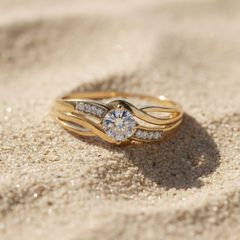
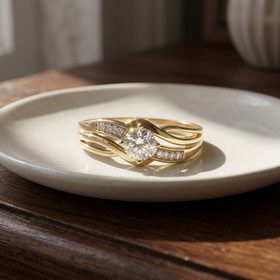
Real results from the auto prompt, with no scene picked by hand.
All the details (scenes, image quality, size charts) are in Etsnipe's AI photo generator.
Tips for a great listing
- Photos: keep photos where the product is clearly visible. For jewelry or fine materials, switch to High quality.
- Tags: create a preset in “Keywords”, then pick it under “Must-have tags” in the Photos step. Those tags are kept on every listing. To find the right words, Alura helps too.
- Price: set your margin and rounding once in Listing Settings. You can still change a listing's price in the Product step.
Next articleRepublish after an Etsy ban